Per-Glyph Text Animation in SwiftUI with TextRenderer
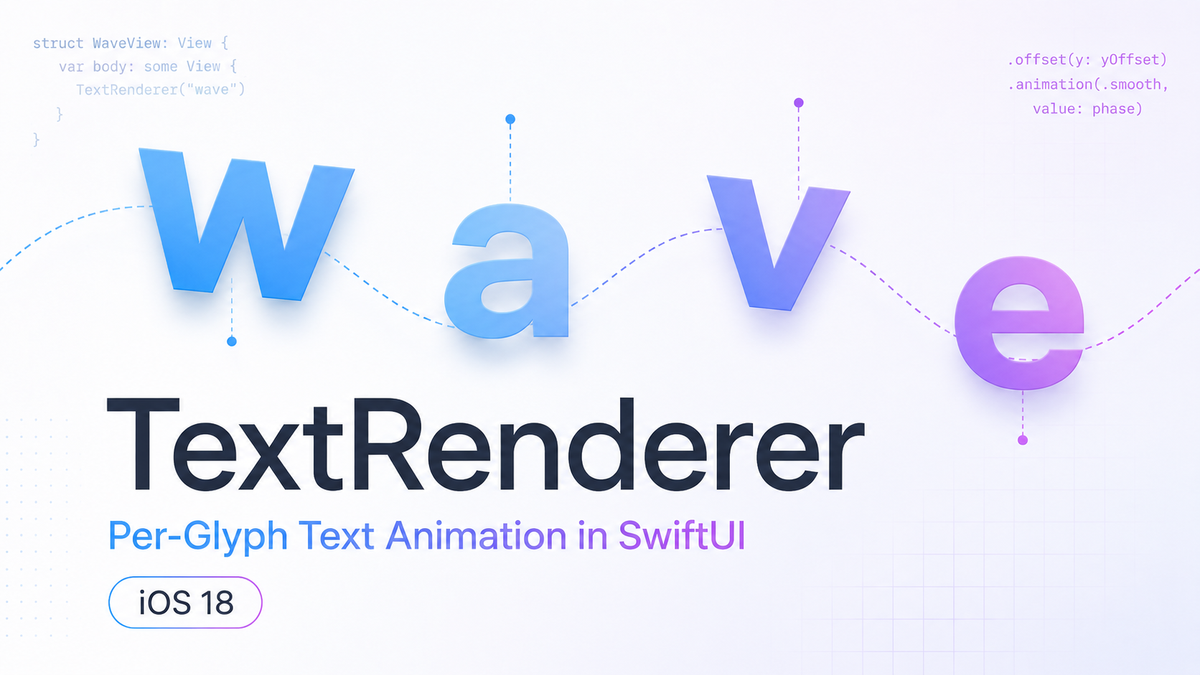
Text animation in iOS has always been awkward. To animate individual characters — a wave effect, a staggered entrance, per-letter color shifts — you either dropped into UIKit with NSTextStorage and CALayer gymnastics, or built a fragile HStack of individual Text views and lost kerning and line-wrapping in the process.
iOS 18 introduced TextRenderer, a protocol that lets you take over text rendering one glyph at a time, from pure SwiftUI. No UIKit. No Core Text. No Text("c") + Text("h") + Text("a") + Text("r"). And there's a detail in the protocol that most people overlook: animatableData is built in — which means you get smoothly animated per-glyph effects driven by the same withAnimation call you already know.
What TextRenderer Actually Is
The protocol has one required method:
func draw(layout: Text.Layout, in context: inout GraphicsContext)By the time draw is called, SwiftUI has already measured and wrapped your text. Text.Layout is a three-level hierarchy: lines (after wrapping) → runs (sequences of glyphs sharing the same attributes) → glyphs (individual characters). You iterate all three levels to reach each glyph.
Drawing happens through GraphicsContext — the same value type used in Canvas. Translate, rotate, scale, or change the opacity of the context before you draw a glyph, and that transform applies only to that glyph. Since GraphicsContext is value-typed, you get a fresh copy per glyph with no cross-contamination.
Attach your renderer to any Text view with .textRenderer(YourRenderer()).
Building a Wave Animation
Here's a wave effect where each character bobs vertically at a phase offset from its neighbor:
struct WaveTextRenderer: TextRenderer, Animatable {
    var phase: Double

    var animatableData: Double {
        get { phase }
        set { phase = newValue }
    }

    func draw(layout: Text.Layout, in context: inout GraphicsContext) {
        for line in layout {
            for run in line {
                for (index, glyph) in run.enumerated() {
                    let offset = Double(index) * 0.4
                    let y = sin(phase + offset) * 6

                    var glyphContext = context
                    glyphContext.translateBy(x: 0, y: y)
                    glyphContext.draw(glyph)
                }
            }
        }
    }
}

struct WaveTextView: View {
    @State private var phase = 0.0

    var body: some View {
        Text("Hello, SwiftUI")
            .font(.largeTitle.bold())
            .textRenderer(WaveTextRenderer(phase: phase))
            .onAppear {
                withAnimation(.linear(duration: 2).repeatForever(autoreverses: false)) {
                    phase = .pi * 2
                }
            }
    }
}
The animation drives phase from 0 to 2π continuously. As phase changes, SwiftUI interpolates animatableData and calls draw on every frame. Each glyph reads its vertical offset from the sine function and translates a copy of the graphics context before drawing.
The Part Most People Miss: animatableData
TextRenderer inherits from Animatable when you declare conformance. The animatableData property works exactly as it does on Shape or any other animatable type: SwiftUI interpolates between start and end values across animation frames and calls draw with each intermediate value.
That means proper easing curves — ease-in, spring, custom timing — are free. Your renderer doesn't poll time or schedule redraws manually. Declare the property, hook it to withAnimation, and SwiftUI handles the rest.
If your renderer has multiple animatable parameters, compose them with AnimatablePair:
struct MultiParamRenderer: TextRenderer, Animatable {
    var amplitude: Double
    var phase: Double

    var animatableData: AnimatablePair<Double, Double> {
        get { AnimatablePair(amplitude, phase) }
        set { amplitude = newValue.first; phase = newValue.second }
    }
    // ...
}
Beyond the Wave: Other Per-Glyph Transforms
The same pattern extends to any transform you can apply to a GraphicsContext. Scale each character with a sine wave for a breathing effect:
let scale = 1.0 + sin(phase + offset) * 0.2
var glyphContext = context
glyphContext.scaleBy(x: scale, y: scale)
glyphContext.draw(glyph)
Or vary opacity for a shimmer:
var glyphContext = context
glyphContext.opacity = 0.5 + 0.5 * sin(phase + offset)
glyphContext.draw(glyph)
Combine translation, scale, and rotation in a single glyphContext for richer effects. Each glyph's context is independent, so there's no risk of one glyph's transform bleeding into its neighbors.
Gotchas Worth Knowing
Glyph coordinates are already positioned
When you call glyphContext.draw(glyph), the glyph draws at its natural position within the text frame — the position SwiftUI already computed during layout. When you translateBy, you're adding an offset relative to that natural position, not setting an absolute coordinate. This is what you want, but it trips people up the first time they try to reposition a glyph from scratch.
Multi-line text requires a running index
The inner run.enumerated() index resets to 0 at the start of each run. If your animation uses a global character index — and the wave example does, implicitly — you need to track it across the outer loops:
var globalIndex = 0
for line in layout {
    for run in line {
        for glyph in run {
            let offset = Double(globalIndex) * 0.4
            // ... draw ...
            globalIndex += 1
        }
    }
}
Without this, the wave resets its phase at the start of each run, producing a visible discontinuity in multi-line text.
Performance scales with string length
draw is called on every animation frame for the entire text. For short labels this is negligible. For long bodies of text with per-glyph trigonometry, profile before shipping — consider throttling the animation or limiting the effect to a visible window of glyphs.
TextRenderer vs AttributedString
Use AttributedString when you want static per-character styling driven by data — different colors, weights, or links baked into your model. Use TextRenderer when you want dynamic, animated, or per-frame rendering that goes beyond what attributes can express. The two aren't in conflict; TextRenderer draws whatever text you give it, attributed or plain.
Summary
TextRenderer is the native SwiftUI answer to per-glyph text effects. Conform to the protocol, iterate Text.Layout's three-level hierarchy, and draw each glyph through a transformed GraphicsContext. Wire up animatableData and you get smooth, easing-aware animation from a standard withAnimation call — no UIKit, no timers, no character-splitting workarounds. If your app targets iOS 18+, this is the right foundation for any effect that treats text as a collection of individually controllable units.