onScrollGeometryChange: Track Scroll Position in SwiftUI Without Tanking Performance
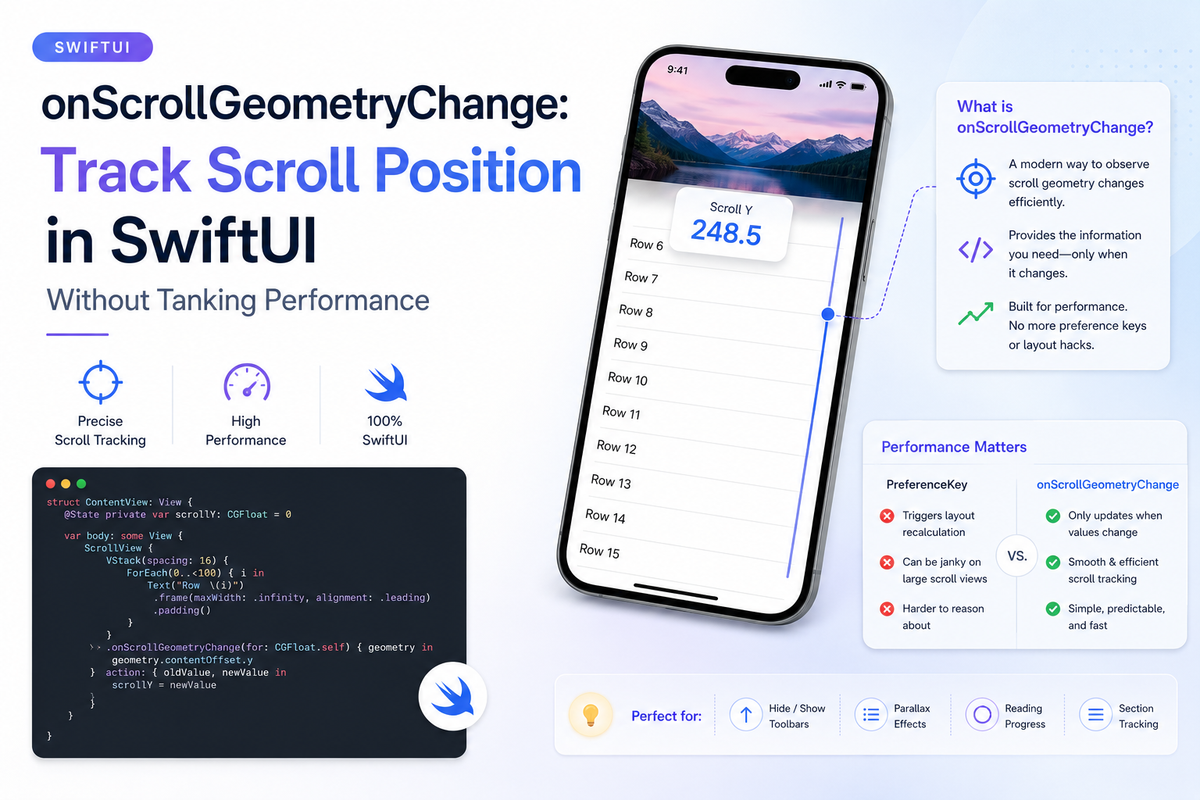
For years, reading a scroll view's offset in SwiftUI meant the same awkward dance: drop a GeometryReader into the content, publish the frame through a PreferenceKey, define a custom coordinate space, and read it all back out somewhere up the tree. It worked, but it added phantom views to your hierarchy, leaked layout work, and fired on every single frame whether or not anything you cared about had actually changed.
iOS 18 replaces the whole pattern with one modifier: onScrollGeometryChange(for:of:action:). The headline is that it gives you the scroll offset directly. The part most examples gloss over — and the part that determines whether your scroll UI is smooth or a battery hog — is that the of: closure is a filter, not just a transformer.
The trigger model
The signature has two closures:
func onScrollGeometryChange<T: Equatable>(
    for type: T.Type,
    of transform: @escaping (ScrollGeometry) -> T,
    action: @escaping (_ oldValue: T, _ newValue: T) -> Void
) -> some View
The transform closure runs constantly while scrolling — potentially 120 times a second on a ProMotion display. But SwiftUI compares the value it returns against the previous one, and only invokes action when the two differ. That Equatable constraint isn't a formality; it's the entire mechanism. The narrower the type you return, the less often your action runs.
This is where the type you choose matters enormously. Return a CGPoint and you've opted into an action call on every pixel of movement. Return a Bool and the action fires at most twice for an entire gesture — once when the condition flips true, once when it flips back.
A back-to-top button, done right
Say you want a "Back to top" button that appears once the user scrolls past 100 points. The only thing you actually care about is a yes/no — so return a Bool:
struct FeedView: View {
    @State private var showScrollToTop = false
    @State private var position = ScrollPosition(idType: Int.self)

    var body: some View {
        ScrollView {
            ForEach(0..<100, id: \.self) { i in
                Text("Row \(i)")
                    .frame(maxWidth: .infinity)
                    .padding()
            }
        }
        .scrollPosition($position)
        // Bool: action fires only at the threshold crossing.
        // Returning contentOffset.y here would fire ~120x/sec.
        .onScrollGeometryChange(for: Bool.self) { geometry in
            geometry.contentOffset.y > 100
        } action: { _, isScrolledDown in
            withAnimation { showScrollToTop = isScrolledDown }
        }
        .overlay(alignment: .top) {
            if showScrollToTop {
                Button("Back to top") {
                    withAnimation { position.scrollTo(edge: .top) }
                }
                .buttonStyle(.borderedProminent)
                .padding()
            }
        }
    }
}
No GeometryReader, no PreferenceKey, no coordinate-space bookkeeping. The threshold lives in one place, and the only state mutation happens when the answer genuinely changes.
What ScrollGeometry gives you
The closure receives a ScrollGeometry, which exposes everything the old preference-key hack made you assemble by hand:
contentOffset: CGPoint— current scroll positioncontentSize: CGSize— the full scrollable content's sizecontentInsets: EdgeInsets— insets applied to the contentcontainerSize: CGSize— the visible scroll view's sizevisibleRect: CGRect— the currently visible region of the contentbounds: CGRect— the scroll view's bounds
Because you get all of it, you can derive higher-level facts. Here's a "scrolled near the bottom" check for infinite-scroll triggers — still returning a Bool:
.onScrollGeometryChange(for: Bool.self) { geometry in
    let distanceFromBottom = geometry.contentSize.height
        - geometry.contentOffset.y
        - geometry.containerSize.height
    return distanceFromBottom < 300
} action: { _, isNearBottom in
    if isNearBottom { viewModel.loadNextPage() }
}
When you genuinely need continuous values
Sometimes you really do need the offset on every frame — a parallax header, a stretchy hero image. That's a legitimate use, but don't reach straight for CGFloat if a coarser value will do. For a header that collapses across a few discrete steps, quantize the value so the action fires a handful of times instead of hundreds:
// Returns 0...10 instead of a continuous CGFloat,
// so `action` runs ~10 times across the collapse, not 120/sec.
.onScrollGeometryChange(for: Int.self) { geometry in
    let progress = min(max(geometry.contentOffset.y / 200, 0), 1)
    return Int(progress * 10)
} action: { _, step in
    headerCollapse = Double(step) / 10
}
Gotchas worth knowing
It only watches the outermost scroll view
If you nest scroll views, onScrollGeometryChange reports geometry for the outer one. Attach it to the inner ScrollView directly if that's the one you mean.
The transform must stay cheap
It runs on every frame of scrolling, before any diffing happens. Don't allocate, format strings, or do trig in there beyond what's necessary — heavy work in the transform negates the whole point, because that part runs regardless of whether the result changed.
Returning too granular a type is the #1 mistake
A CGPoint or raw CGFloat makes action fire continuously, which then churns @State, which re-renders your view dozens of times a second. If you find a scroll-driven view stuttering, the first thing to check is the return type of your of: closure.
action gives you old and new
The two parameters are the previous and current filtered values — handy when you want to know the direction of a change, not just that one happened.
Summary
onScrollGeometryChange retires the GeometryReader + PreferenceKey offset hack and replaces it with a single modifier that hands you a full ScrollGeometry. The real lesson is that the of: closure is a filter: SwiftUI only calls your action when the Equatable value you return actually changes, so the type you pick is a performance decision. Return the narrowest thing that answers your question — a Bool for a threshold, a quantized Int for a stepped animation — and your scroll-driven UI does the minimum work it possibly can.