SwiftUI's TextEditor Finally Speaks AttributedString: A Practical Guide to iOS 26 Rich Text
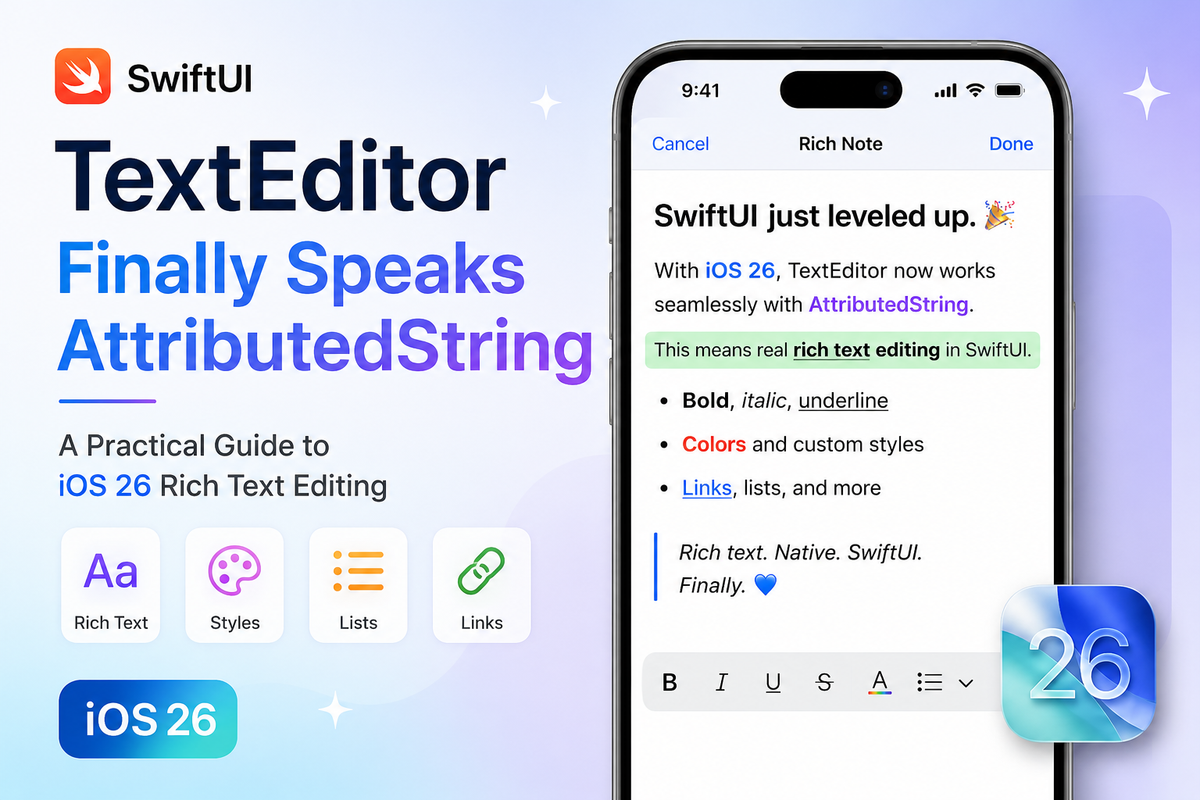
TextEditor has only ever accepted a plain String binding. The moment an app needed anything richer than that — a bold heading, a colored word, an inline link — the SwiftUI-only toolkit ran out, and the fallback was always the same: wrap UITextView in a UIViewRepresentable, write an NSObject-based Coordinator conforming to UITextViewDelegate, and manually convert NSAttributedString to and from Swift's AttributedString on every keystroke. That bridge was never free — the two types have different internal representations, and converting from NSAttributedString only picks up the attribute scopes the SDK already knows about unless you ask for more explicitly.
iOS 26 removes the detour. TextEditor gained an overload that binds directly to an AttributedString, plus a second overload that also exposes an AttributedTextSelection so you can build custom formatting controls. Typing, the system's formatting menu, and reading the result back out all stay in pure Swift, with no NSAttributedString in sight. This isn't a replacement for a desktop-grade typesetting engine — Apple's own WWDC25 session on the topic is upfront about that — but for notes, comments, and lightly formatted documents, it's now a complete native stack.
From UITextView wrapper to one binding
Before iOS 26, adding rich text to a SwiftUI screen meant reaching underneath it: a UIViewRepresentable, a delegate-based Coordinator, and a manual conversion step wired into every read and write. iOS 26 collapses all of that into a single property wrapper and a single view — no bridging layer, no delegate methods to implement, no synchronization bugs between two different string representations.
Seeding an editor with pre-formatted content
AttributedString is a value type, so styling a substring only touches that substring's attributes — nothing else in the string moves.
import SwiftUI

struct MeetingNotesEditor: View {
    @State private var note: AttributedString = {
        var text = AttributedString("Meeting Notes\n\nAction items here.")
        if let headingRange = text.range(of: "Meeting Notes") {
            text[headingRange].font = .system(size: 20, weight: .bold)
            text[headingRange].foregroundColor = .primary
        }
        return text
    }()

    var body: some View {
        TextEditor(text: $note)
            .padding()
    }
}
range(of:) locates the substring, and subscripting that range sets attributes only there: headingRange gets a bold, larger font while the rest of note keeps its default attributes. Because the binding is AttributedString rather than String, that formatting survives everything the user does in the editor afterward — and reading note back out gives you a fully-formed AttributedString, not a plain string you'd have to re-parse for structure.
What comes free
Once a TextEditor is bound to AttributedString, it exposes the platform's native formatting controls automatically — bold, italic, underline, strikethrough, font, color, paragraph alignment, even Genmoji — with zero extra code. For basic formatting, the binding itself is the whole feature.
Building a custom formatting control
Most apps want at least one custom control beyond the system menu — a dedicated "Bold" button, a heading shortcut. That means reading and writing attributes at the current selection, which is what AttributedTextSelection is for.
struct FormattingToolbarEditor: View {
    @State private var text = AttributedString("Write something…")
    @State private var selection = AttributedTextSelection()
    @State private var isBold = false

    var body: some View {
        VStack(alignment: .leading) {
            Button(isBold ? "Bold: On" : "Bold: Off") {
                isBold.toggle()
                text.transform(updating: &selection) { text in
                    text.font = isBold
                        ? .system(size: 17, weight: .bold)
                        : .system(size: 17)
                }
            }
            TextEditor(text: $text, selection: $selection)
                .padding()
        }
    }
}
transform(updating:) is doing two jobs in one call: applying the new font attribute to the selected range of text, and keeping selection valid across that edit. That pairing matters more than it looks like it should — which is exactly why the next section exists.
Edge cases and gotchas
Mutation invalidates indices. AttributedString stores its content as a tree, not a flat array, so a Range<AttributedString.Index> computed before an edit isn't guaranteed to still make sense after it — inserting, deleting, or restyling a run can shift what those indices point to. That's exactly why the toggle above calls text.transform(updating: &selection) instead of mutating text and selection as two separate steps: the transform applies the change and re-derives the selection in the same operation. It's worth knowing where that guarantee ends, too — if a mutation is disruptive enough (replacing the entire attributed string wholesale, for instance), the framework can't carry the old selection forward, and it silently resets to the end of the text. Anyone building a "select all, then reformat" feature should test that path specifically, because nothing errors or warns when it happens — the selection just moves.
Formatting is unconstrained by default. TextEditor doesn't restrict what attributes can land in the text out of the box — it uses the full SwiftUIAttributes scope, so a user pasting content from somewhere else can bring arbitrary fonts, sizes, and colors along with it. If an app needs to cap that — a comment field that should only ever allow bold and links, or a heading that must stay one font across an entire paragraph — that requires opting into AttributedTextFormattingDefinition and composing AttributedTextValueConstraint rules. TextEditor then applies those constraints to anything typed or pasted before it's shown. It's easy to ship a rich text field without this and only discover the gap when a user pastes something the design never anticipated.
NSAttributedString interop still has a cost. Apps that mix this with existing UIKit code or persist rich text through Core Data haven't fully escaped the bridging tax: converting between AttributedString and NSAttributedString still only carries over the attribute scopes the SDK recognizes by default, so custom or third-party attributes need the more explicit init(_:including:) initializer or they quietly disappear in the round trip.
Summary
iOS 26's AttributedString-bound TextEditor removes the last common reason to wrap UITextView in a UIViewRepresentable just to get rich text into a SwiftUI screen — seeding, editing, and reading formatted content is now a pure-Swift round trip. The tradeoff is a new set of rules to internalize: mutate through transform(updating:) or risk a stale selection, and opt into formatting constraints if you don't want users pasting in whatever attributes they like. For notes, comments, and lightly formatted documents, that's a small price for a complete native stack.